
Excel construction estimate template that actually works

You can build an Excel estimate you trust in an afternoon: one sheet of line items with quantity, unit cost and labor, a price list your formulas look up, one place for your markup, and category totals you can turn into a quote. This guide walks through each part, and you can download the finished template to follow along.
Key takeaways
- Keep your prices on a separate PriceList sheet with named ranges, so one price change updates every estimate.
- Put overhead, profit, tax and your labor rate in their own Settings cells, and point every formula at them instead of typing percentages inline.
- Group line items into about 10 cost categories, so material orders sort by supplier and homeowners read a short summary instead of 200 rows.
- Build a Quote tab that shows only category prices, then save it as a PDF, so homeowners never see unit costs or markup.
- Start from a template, then make it yours: your trade, your prices, your categories.
Download the free template
Download the QuoteWillow estimate template (.xlsx). It opens in any version of Excel and in LibreOffice. It has six tabs:
| Tab | What it’s for |
|---|---|
| Start Here | How to use it, and which cells to fill in (they’re yellow) |
| Settings | Overhead, profit, sales tax on materials, labor rate and your cost categories |
| PriceList | Your items: code, unit cost, labor hours per unit and waste % |
| Estimate | One line per item. Type a code and a quantity; the rest fills in |
| Summary | Your internal totals by category, with tax, overhead and profit |
| Quote | The page the homeowner sees and signs |
It comes filled in with a made-up example job, a 12x16 single-story room addition on a slab. Every price and rate in it is a placeholder, not a market price, so replace them with yours.
What columns does an estimate need?
Each line on the Estimate tab has these columns. You type three of them (code, quantity and notes) and formulas fill in the rest:
| Column | What it does |
|---|---|
| Code | The item’s code from your PriceList |
| Line item, Category, Unit | Looked up from the PriceList |
| Qty | What the job needs, before waste |
| Waste % and Order qty | Order qty is the quantity plus waste, so you order enough |
| Unit cost and Material cost | Material cost is order qty times unit cost |
| Labor hrs and Labor cost | Hours per unit times quantity, times your labor rate |
| Line total | Material plus labor |
| Notes | Anything the next person needs to know |
Keep the category in its own column rather than in the item name. That’s what lets you total by category later.
Optional columns for specialty trades
Add a column only when your trade actually prices it. A vendor column helps when you order from several suppliers. Remodelers who sub out plumbing or electrical often add a subcontractor cost column. Every column you don’t need is one more place for a mistake.
A worked example: a 12x16 room addition
Here are four lines from the example job, using the template’s example prices and a $65 labor rate:
| Line item | Qty | Waste | Order qty | Unit cost | Material | Labor hrs | Line total |
|---|---|---|---|---|---|---|---|
| Slab, 4 in, with vapor barrier | 192 sq ft | 5% | 201.6 | $6.50 | $1,310.40 | 9.6 | $1,934.40 |
| Wall framing, 2x6 at 16 in | 40 lf | 10% | 44 | $28.00 | $1,232.00 | 20 | $2,532.00 |
| Drywall, hung and finished | 552 sq ft | 12% | 618.24 | $1.90 | $1,174.66 | 22.08 | $2,609.86 |
| Window, 36 x 60 in | 3 ea | 0% | 3 | $650 | $1,950.00 | 7.5 | $2,437.50 |
The whole example job has 18 lines and comes to $20,069.84 in materials and about 190 labor hours ($12,347.40), or $32,417.24 in direct cost before tax, overhead and profit. With the example settings (7% tax on materials, 10% overhead, 15% profit), the quote total is $42,784.99.
Which formulas do the work?
A PriceList sheet with named ranges
Put every item you sell on a sheet called PriceList: code, description, category, unit, unit cost, labor hours per unit and waste %. Then name each column (select it, then Formulas > Define Name), for example PL_Code and PL_Cost. Named ranges keep formulas readable, and they mean one price change on the PriceList updates every estimate in the workbook.
Look up prices by code
The template looks up each line’s price like this:
=IF($A7="","",IFERROR(INDEX(PL_Cost,MATCH($A7,PL_Code,0)),0))
The description column uses the same lookup, but shows CHECK CODE when a code isn’t on the PriceList. That flag matters: a lookup that quietly returns zero is how an underpriced job goes out the door. The Summary tab counts the flags and tells you to fix them before you send anything.
On Excel 365 you can write the same lookup as =XLOOKUP($A7,PL_Code,PL_Cost,"CHECK PRICE"). The template uses INDEX and MATCH because they work in every version of Excel.
Markup, overhead and profit in their own cells
Put your overhead rate, profit margin, sales tax on materials and labor rate in labeled cells on a Settings sheet, name them, and reference them everywhere:
Tax       = Materials * TaxRate
Overhead  = (Direct cost + Tax) * Overhead
Profit    = (Direct cost + Tax + Overhead) * Profit
Never type 20% into a formula. When material costs jump or your margin changes, you change one cell and every estimate after it follows, instead of hunting through old files to find which jobs used 15% and which used 18%. Note that this markup compounds: profit applies on top of overhead. If you price differently, change those two formulas once.
How sales tax applies to construction materials varies by state, so check how yours works before you rely on that line.
SUMIF to roll lines into categories
On the Summary tab, each category’s total is one formula:
=SUMIF(EST_Cat,"Framing & Carpentry",EST_Material)
Do the same for labor, and you get materials, labor and direct cost per category, which is what you’ll turn into the homeowner’s quote.
How should you organize line items into categories?
The full CSI MasterFormat runs to 50 divisions and is built for commercial specifications. A remodeler quoting a kitchen or an addition needs about 10 buckets. The template uses these, and you can rename them on the Settings tab:
- Site Work (demo, haul-off, excavation)
- Concrete (slabs, footings, pads)
- Masonry
- Framing & Carpentry
- Roofing & Exteriors
- Plumbing & Mechanical
- Electrical
- Finishes (drywall, flooring, paint, trim)
- Cabinets & Countertops
- Allowances (fixtures, appliances, tile, permits)
Grouping lines this way does two things. Your material lists stay organized by supplier, so the lumberyard order and the plumbing order come out separately. And the homeowner sees a one-page summary by category instead of every board and bracket.
Most jobs don’t use all ten. The example addition uses eight: everything except Masonry and Cabinets & Countertops. A bathroom remodel might use only Plumbing & Mechanical, Electrical, Finishes, Cabinets & Countertops and Allowances, and that’s fine: empty categories show as a dash on the quote.
Does one template work for residential and commercial jobs?
It can, but the jobs price differently. Residential work runs on unit prices and lump-sum allowances. Commercial bids expect costs by CSI division, with alternates and exclusions listed, and they add lines residential work rarely sees, such as performance and payment bonds and prevailing-wage labor.
If you do both, keep the commercial lines in the same PriceList with their own codes, and only add them to the estimates that need them. Save a copy of the workbook for each job, named with the job, the client and a version number, so you always know which price you sent.
What mistakes make Excel estimates unreliable?
Most broken estimate workbooks fail in the same five ways:
- Typed numbers over formulas. Someone types a total over a
=SUM()cell and the formula is gone. Press Ctrl+` (the backtick key, left of 1) to show every formula, and look for plain numbers where formulas should be. - Broken references between sheets. Rename or delete a sheet and its formulas break. Named ranges survive this better than cell addresses.
- No version control. Save as
Addition-Smith-v3.xlsx, never “final.” - Print ranges that cut columns. Set the print area (Page Layout > Print Area), and fit it to one page wide so no column falls off the PDF.
- Markup buried in the math. Keep it in the Settings cells, so you can see what you charged.
Always preview before you send. A homeowner who sees half a materials list assumes the price is half finished.
How do you turn the estimate into a quote the homeowner can sign?
Add a tab named Quote that pulls every number from your summary by cell reference, never by retyping it. Show the scope of work, the price for each category and the total. Because it references only category totals, unit costs and markup never appear on it.
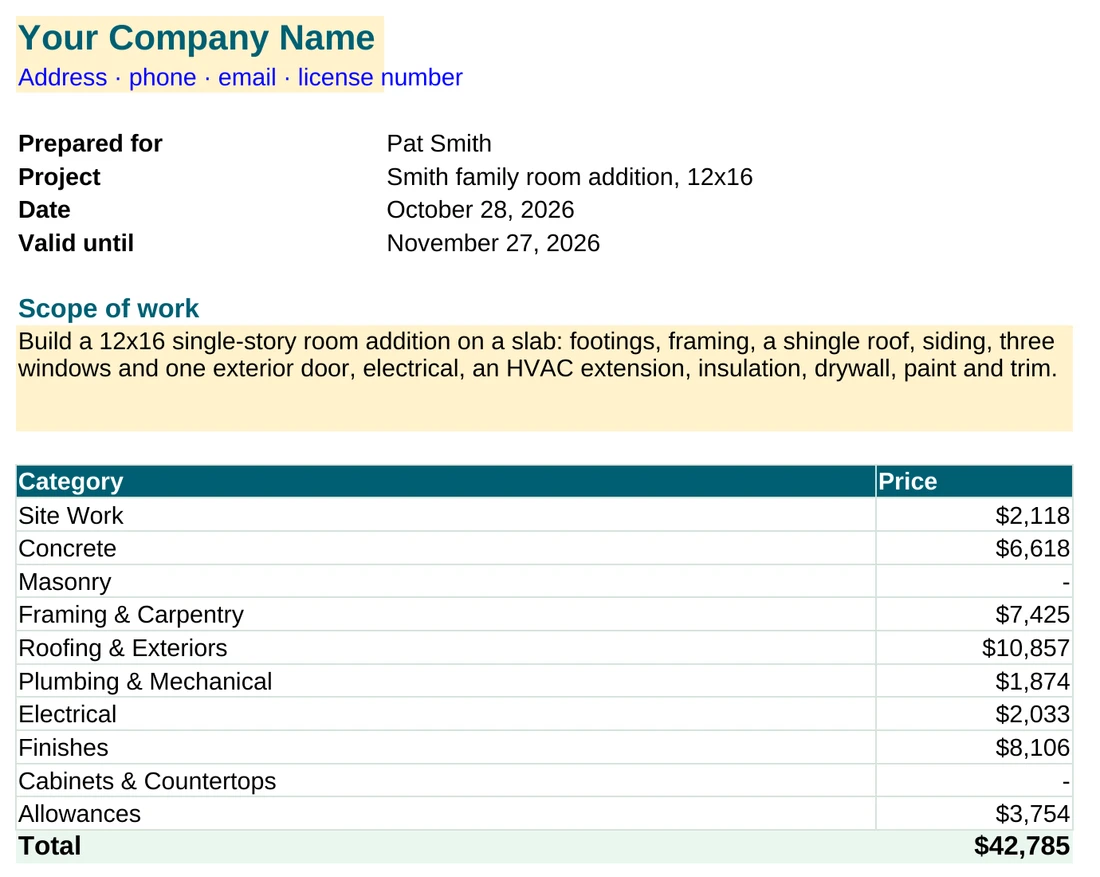
Then protect your margin with three blocks of plain language:
- Allowances. List each one, for example “Tile allowance: $4,500,” and say how differences are billed.
- Not included. Permits if you don’t pull them, landscaping repair, haul-away, whatever you don’t cover.
- Validity and signature. A date the price is good until (the template uses 30 days) and a signature line.
To send it, save only the Quote tab as a PDF: on Windows, File > Export > Create PDF/XPS; on a Mac, File > Save As and choose PDF. Keep the Estimate and Summary tabs to yourself.
When does an Excel template stop working?
A spreadsheet is a fine estimating tool. It starts to cost you in three situations:
- Every inquiry starts from zero. You are building the same kind of estimate at 10 p.m. because nothing captured the project before you sat down.
- You price jobs that were never going to happen. A spreadsheet can’t tell you, before the first call, whether the homeowner’s budget is anywhere near the project.
- The prices live in your head. If a ballpark number depends on you being available, nobody else can answer a homeowner.
Different tools fix different parts of this. Field-service software handles scheduling, crews and invoicing once you have the job. QuoteWillow works on the step before that: homeowners describe the project on your website, add a photo, a sketch or a PDF plan, and get a preliminary range calculated from your Price Book, your materials, labor and project rules. The AI interprets the request; the application does the math. Projects that need judgment go to builder review, and you confirm the final quote. QuoteWillow doesn’t schedule crews or send invoices. It costs $75 a month for up to 25 plan reviews, after a 30-day free trial.
Excel still wins on price and control. Your PriceList is the same kind of information a Price Book holds, so the work you put into the template carries over either way.
Should you download a template or build your own?
Download one to learn the structure, then make it yours. A finished template shows you how categories, quantities and markup flow together faster than a blank workbook does.
What a generic template gets wrong is your trade. An addition needs footings, framing, roofing and siding lines, each with its own waste factor; a template with a single “materials” row won’t do. Generic downloads also often type numbers into formulas, so one changed unit cost leaves three totals wrong.
So start from this one or another, replace the example prices, rename the categories, and test it on a job you have already built. You’ll trust the numbers because you checked every formula.
Frequently asked questions
Is there a free Excel construction estimate template that works for remodelers?
Yes. This one is free and has a price list, settings, category totals and a client quote tab. Treat any template as a starting point: replace the example prices with yours and rename the categories for your trade.
How much markup should I build into a remodel or addition estimate?
There is no universal number, and the mechanics matter more than the percentage. Keep your overhead, profit and tax rates in their own Settings cells and reference them in every formula, so changing a rate is one edit.
Can one workbook hold both my estimate and the quote I hand the homeowner?
Yes. Keep every line item on the Estimate tab, and build a Quote tab that pulls only category totals by cell reference. Print or save the Quote tab alone as a PDF.
What’s the fastest way to estimate labor in Excel?
Store typical labor hours per unit on your PriceList, multiply them by the quantity on each line, and multiply the hours by a labor rate kept in a Settings cell. A wage change is then one edit.
How do I keep clients from seeing my unit costs?
Never send the Estimate tab. Send a Quote tab that references only category totals, saved on its own as a PDF, and keep the full workbook internal.
If a homeowner’s first question is usually “about how much?”, see how QuoteWillow works for contractors or walk through the demo.